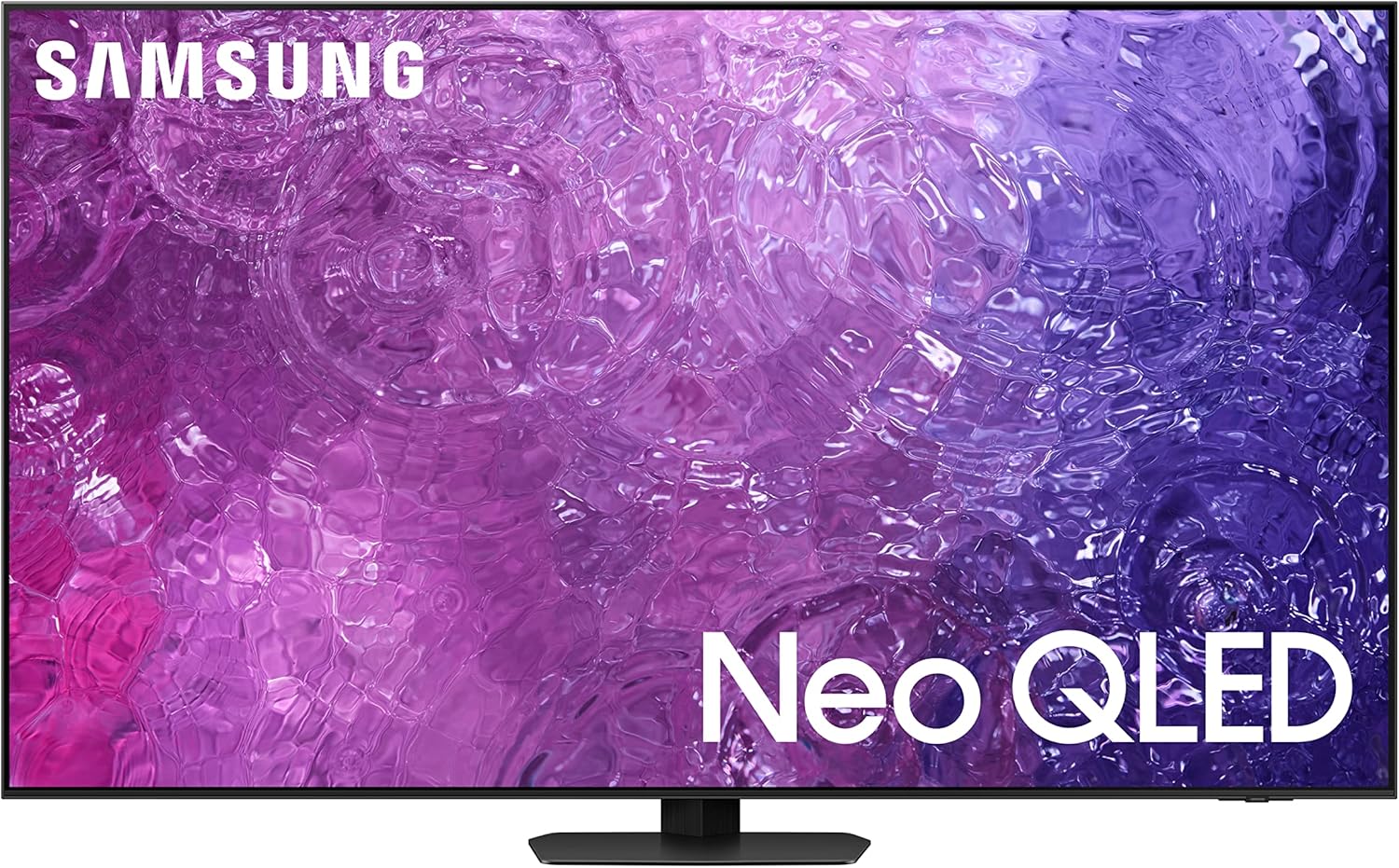
Smart TVs have become the centerpiece of modern living rooms, offering built-in apps, voice control, and seamless streaming without the need for extra devices. If you’ve just purchased one or are planning to upgrade, this guide will walk you through the step-by-step process of setting up and activating your TV for the best experience.
Step 1: Unbox and Position Your TV
- Choose the Right Spot: Place your TV where it’s visible from all seating areas.
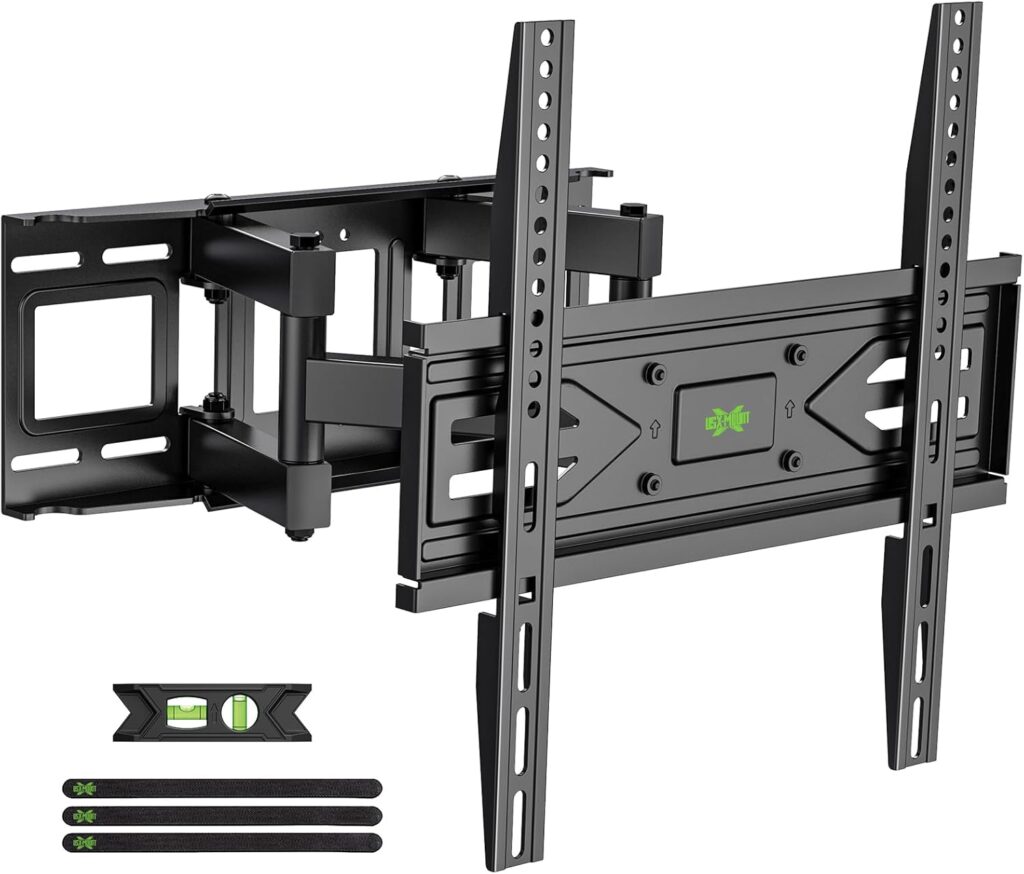
- Wall Mount vs. Stand: Decide whether to mount it on the wall or use the included stand.
- Lighting Considerations: Avoid direct sunlight or glare from windows.
Step 2: Connect Power and Devices
- Plug in the TV: Use a surge protector to safeguard against power fluctuations.
- Connect External Devices: HDMI ports for consoles, Blu-ray players, or sound systems.
- USB Ports: For media drives or accessories.
Step 3: Connect to Wi-Fi
- Go to Settings: Navigate to the network setup menu.
- Select Your Wi-Fi: Enter your password securely.
- Tip: Use a 5GHz connection for faster streaming and less buffering.
Step 4: Sign In and Activate Your TV
- Create or Log Into Accounts: Samsung, LG, Sony, or Google accounts depending on your TV brand.
- Activation Process: Many TVs require you to visit a specific official link to complete setup.
- Update Firmware: Ensure your TV has the latest software for security and performance.
- Enable Auto Updates: Keep apps and system software current.
Step 5: Install Streaming Apps
- Popular Apps: Netflix, Prime Video, Disney+, YouTube.
- App Store Access: Use the built-in store to download additional apps.
- Organize Apps: Place your favorites on the home screen for quick access.
Step 6: Set Up Voice Control
- Enable Voice Assistants: Alexa, Google Assistant, or Siri depending on compatibility.
- Hands-Free Commands: Control volume, switch inputs, or search for shows using voice.
- Smart Home Integration: Connect with lights, speakers, or other smart devices.
Step 7: Optimize Audio and Video
- Picture Settings: Adjust brightness, contrast, and enable HDR or Dolby Vision.
- Sound Settings: Use built-in speakers or connect to a soundbar/home theater system.
- Game Mode: Reduce input lag for gaming consoles.
Step 8: Personalize Your Experience
- Parental Controls: Restrict content for kids.
- Screen Mirroring: Cast from your phone or laptop.
- Custom Profiles: Create profiles for different family members.
Final Checklist
- Is your TV connected to Wi-Fi?
- Have you completed activation?
- Are all apps installed and updated?
- Is the picture and sound optimized for your room?
- Have you set up voice control and smart features?